IPS vs VA vs OLED: how monitor panel types differ
IPS keeps colors steady from wide angles but shows weaker blacks; VA has the most contrast of any LCD type; OLED lights each pixel itself, so black is truly black, but static images can cause burn-in. TN, the oldest type, is fast and affordable, with the narrowest viewing angles.
Most monitors use one of three panel types. IPS and VA are LCDs, lit from behind by a backlight; in an OLED, every pixel makes its own light. TN, the oldest LCD type, now turns up mostly in budget and very fast esports monitors. The comparison below uses the makers’ own descriptions, and each section ends with a test that shows the trait on your own screen.
The short comparison
| Trait | IPS | VA | OLED |
|---|---|---|---|
| Light | Backlight | Backlight | Each pixel lights itself |
| Black level | Weaker than VA and TN, BenQ says | The most contrast of any LCD type; 3000:1 and more is common, BenQ says | True black: a pixel that is off gives no light |
| Viewing angles | 178° side to side and top to bottom | 178° side to side and top to bottom | Excellent, BenQ says |
| Color | Often 95 to 100% of DCI-P3, the widest of the LCD types, BenQ says | Beyond sRGB, often Adobe RGB, BenQ says | Not covered by these sources |
| Speed | Now close to VA and TN, BenQ says | Typically 2 to 3 ms and up to 200 Hz, BenQ says | The fastest response of any type, BenQ says |
| Watch for | IPS glow in dark scenes | Not as fast as TN, BenQ says | Image retention and burn-in |
IPS: wide angles and color, weaker blacks
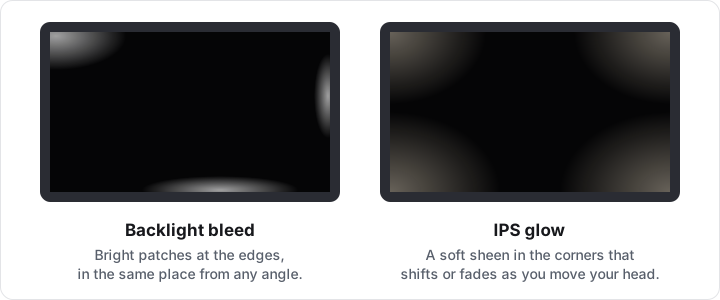
IPS keeps colors steady from almost any angle, which BenQ singles out for shared viewing and color work. Its weak point is black: in a dark room, a black screen shows a soft glow, strongest in the corners.
Dell describes that glow as normal: IPS glow changes as you move your head or your distance from the screen, mostly affects the corners, and is “an inherent trait of IPS technology”. Backlight bleed, or light leakage, stays in the same place whatever your angle, can happen on any LCD, and counts as a defect if it spoils the picture. To tell them apart, use the Backlight Bleed Test in a dim room, with brightness around 30 to 50% as Dell suggests, and move your head.
VA: the most contrast of any LCD
BenQ calls VA the best all-round LCD: the most contrast of any LCD type, with ratios of 3000:1 and more common, the same 178° viewing angles as IPS, and a wider color range than TN. That contrast suits HDR, and BenQ notes that most current TVs use VA panels. Compare black and near-black detail on your screen with the Contrast Test, and check fast motion with the Ghosting Test.
OLED: true black, with burn-in to manage
An OLED pixel makes its own light, so a black pixel is simply off. Samsung describes the result as true blacks, and VESA’s DisplayHDR True Black certification, made for OLED and other self-lit screens, allows black levels down to 0.0005 cd/m².
The trade-off is burn-in, which Samsung defines as permanent image retention caused by showing static images for long periods. LG warns that static parts such as the Windows taskbar, icons and game menus can leave temporary image retention. Makers build in protection:
- LG: Settings > OLED Care > Image Cleaning, which also runs by itself after more than four hours of use since the last cleaning.
- Dell Alienware: Pixel Shift on the AW3423DW moves the image by one pixel every 3 minutes.
- Samsung: OLED Safeguard+ includes logo and taskbar detection.
Let those routines run, and avoid leaving the same static image on screen for hours. To check an OLED for retention, view the solid fields of the Burn-In Test.
TN: speed first
BenQ describes TN as usually the most affordable and the fastest panel type, but with the narrowest viewing angles, as low as 170° by 160°, contrast that rarely goes over 1000:1 and the smallest color range of the three LCD types.
How to tell which panel you have
- Check the model’s specification sheet, which usually names the panel type.
- In a dark room, show black full screen with the Monitor Test. An OLED stays fully black. An LCD shows some light; on IPS it glows in the corners and shifts as you move your head.
Sources
The official pages this guide follows, last checked on . Found something out of date? See Contact.
- BenQ: VA vs IPS vs TN, which panel is best for gaming?
- Dell: How to distinguish IPS glow and light leakage in a Dell monitor
- Samsung: Why choose OLED monitors
- VESA: DisplayHDR True Black for OLED and other emissive displays
- LG: Fix lines or marks on an LG OLED monitor with Image Cleaning
- Dell: Alienware AW3423DW Pixel Shift
Tests used in this guide
Backlight Bleed Test
Show full-screen black and dark grays to spot backlight bleed and IPS glow on an LCD.
Contrast Test
Check black level, black crush and white clipping with numbered gray steps from 0 to 255.
Screen Burn-In Test
Fill the screen with flat gray, white, black and color fields to spot image retention and burn-in.
Ghosting Test
Watch moving blocks, bars, text and lines for ghosting trails, motion blur and overdrive halos.
Monitor Test
Fill any monitor, laptop, phone or TV screen with solid colors to check it for visible faults.
More guides
- How to test a new monitorTest a new monitor on day one, while it can still go back: set the native resolution, then check dead pixels, backlight bleed, uniformity, banding, gamma, refresh rate and ghosting in your browser. The whole check takes about 10 minutes.
- Dead pixel vs stuck pixel vs hot pixel: what is the difference?A dead pixel stays black on every color, and no software can repair it. A stuck pixel stays lit in one color and a hot pixel stays white, both easiest to see on black; either can sometimes recover.
- Dead pixel policy: how many faulty pixels each brand allowsMost monitor makers replace a screen only when faulty pixels pass a set limit, and they count bright faults more strictly than dark ones. Dell’s Premium Panel Exchange models and some premium lines from Lenovo, ASUS and Gigabyte are replaced for a single bright pixel; others accept a few. Count yours, then compare.
- How to calibrate a monitor without a colorimeterWithout a colorimeter you can set four things by eye: brightness, so the darkest gray steps just separate from black; contrast, so the brightest stay distinct from white; gamma, to about 2.2; and white balance, until gray shows no tint. Color accuracy needs a colorimeter.