Dead pixel vs stuck pixel vs hot pixel: what is the difference?
A dead pixel stays black on every color, and no software can repair it. A stuck pixel stays lit in one color and a hot pixel stays white, both easiest to see on black; either can sometimes recover.
The names describe what you see on a monitor, laptop, phone or TV, not what failed inside the panel. In photography, a “hot pixel” is a camera sensor pixel that records too much light in long exposures: if a bright dot sits in the same spot in your photos on every screen, the camera is at fault, not the display.
What dead, stuck and hot pixels look like
Most screens build each pixel from a red, a green and a blue subpixel. Each fault below is one or more of them stuck on or off.
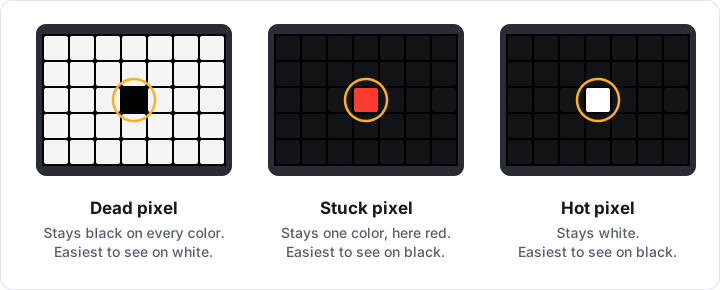
| Fault | On black | On white | On red, green or blue |
|---|---|---|---|
| Dead pixel: all subpixels off | Not visible | Black dot | Black dot on all three |
| Dead subpixel: one off | Not visible | Cyan, magenta or yellow dot | Black dot on its own color only |
| Stuck pixel: one or two on | Red, green, blue, yellow, cyan or magenta dot | Usually not visible | Colored dot on colors it does not match |
| Hot pixel: all on | White dot | Usually not visible | White dot on all three |
No single color shows every fault. A dead pixel disappears on black and a stuck or hot pixel disappears on white, so check both, plus the three primaries.
How to tell which one you have
- Wipe the screen with a soft, dry cloth.
- Open the Dead Pixel Test and press Start test. It shows full-screen white, black, red, green and blue.
- Step through every color, or turn on Auto cycle. Note which colors the dot shows on, and in what color.
- A close-up photo, zoomed in on your phone, can show whether a whole pixel or one subpixel is affected.
- For a second look, the Monitor Test adds yellow, cyan and magenta, which help confirm the subpixel.
Some phone browsers, including Safari on iPhone, cannot show a page full screen, so the strips under their bars are not tested. On a TV, a solid color still reaches every panel pixel even when the TV crops the picture, but black bars from mirroring a laptop to a screen of a different shape leave strips untested: open the test in the TV’s own browser, or set the laptop’s output to the TV’s resolution.
Why a stuck pixel can be yellow, cyan or magenta
A screen mixes light, so lit subpixels add up:
- One stuck subpixel shows red, green or blue.
- Two mix: red and green make yellow, green and blue make cyan, red and blue make magenta.
- All three make white: a hot pixel.
- A dead subpixel works the other way. On white, the pixel shows the other two mixed: no red looks cyan, no green looks magenta, no blue looks yellow.
So a cyan dot on white is a dead red subpixel, while a cyan dot on black is a stuck pixel with green and blue lit. Some OLED panels arrange subpixels differently or add a white one, so colors can vary.
Is it dust or a pixel?
- A pixel fault is a sharp point, one pixel or subpixel in size, in exactly the same place whenever it shows.
- Surface dust wipes off, and it can catch room light and look bright on black. Dust inside the panel does not wipe off: it usually looks like a soft smudge, larger than a pixel and without a sharp edge.
- With the screen off, a scratch is still visible; a pixel fault is not.
- A larger, soft bright or dark patch, such as a pressure mark, is a uniformity problem; see the Screen Uniformity Test.
- Burn-in and image retention leave a faint shape, such as a taskbar, not a dot; check them with the Screen Burn-In Test.
Do dead or stuck pixels spread?
Usually not. The fault is in that pixel’s own circuit and does not normally spread to its neighbors. New faults can still appear, so check again before the return window closes. A stuck pixel may recover on its own; a dead one usually does not. A growing cluster or a spreading patch is a different problem.
What a line or a growing black spot means
A line across the screen
A thin line across the full height or width of the screen is not usually a row of individually failed pixels. It points to the circuit that drives that row or column, the panel’s connection to its board, or the display cable. To narrow it down:
- Take a screenshot and view it on another device. If the line is in it, the cause is in the computer, such as an app, the graphics driver or the GPU. If not, look at the video output, the cable and the screen.
- On an external monitor, open its own menu, or its built-in self-test if it has one. If the line crosses the menu too, the monitor is at fault.
- Try another cable and input. On a laptop, open and close the lid slowly: a line that changes as the hinge moves points to the display cable.
A black spot that grows on a phone
A dark spot that grows over days, sometimes with green or purple lines near it, is usually physical damage from an impact, pressure or liquid, not dead pixels. Back up the phone and have the display checked. If the screen lifts from the frame or the case bulges, stop using and charging it: a swollen battery can press on the display and is a safety risk.
Can a dead or stuck pixel be fixed?
| What you see | What is usually wrong | Can software help? |
|---|---|---|
| Dead pixel or subpixel | A fault keeps it dark | No |
| Stuck or hot pixel | A fault keeps subpixels lit | Sometimes |
| Line across the screen | Row or column driver, connection or cable | Only if the graphics driver is the cause |
| Growing black spot | Physical damage | No |
A dead pixel can only be fixed by replacing the panel, under warranty or through a repair. For a stuck or hot pixel:
- Restart the device, or switch the monitor off and on, and check again.
- Confirm with the Dead Pixel Test that the dot is lit or colored. A dot that is black on every color is dead.
- Open the Stuck Pixel Fixer, which fills the screen with rapidly changing random colors. It flashes, so do not use it if you are sensitive to flashing light. Tick “I understand and want to continue”, choose a Duration and press Start.
- When the timer ends, check again, and repeat over the next few days if needed. Some stuck pixels are reported to clear after one run or several, and some never do.
- If several runs change nothing, document it as a defect.
Never press, rub, tap or heat the screen. These are often suggested online, but they can damage the panel, add new faults, and leave damage a warranty usually does not cover.
How to document a defect for a return or warranty
Return windows and warranties are separate, and pixel policies differ between brands and product lines. Dell’s Display Pixel Guidelines, for example, count bright and dark defects separately and are stricter for some product lines than others. Check the policy for your exact model, not a number from a forum. The dead pixel policy guide lists the limits from Dell, Lenovo, ASUS, Gigabyte, BenQ, AOC, ViewSonic and LG.
- Test on the day the screen arrives, while the return window is open.
- Count the faults by type, dark (dead) and bright (stuck or hot), noting whether each is a whole pixel or one subpixel.
- Record the color each one shows and the test colors it appears on.
- Note each position, for example “about 2 inches from the left edge, just above the middle”.
- Photograph each fault close up and from farther back to show where it is. Photos can exaggerate a fault or miss it, so keep written notes too.
- Add the model number, serial number, purchase date and the date you found the fault, and send it all to the retailer or manufacturer.
For the rest of a new screen check, see how to test a new monitor.
Sources
The official pages this guide follows, last checked on . Found something out of date? See Contact.
Tests used in this guide
Dead Pixel Test
Fill the screen with five solid colors to spot dead, stuck and hot pixels.
Stuck Pixel Fixer
Flash random colors over the whole screen for a timed run to try to free a stuck pixel.
Monitor Test
Fill any monitor, laptop, phone or TV screen with solid colors to check it for visible faults.
More guides
- How to test a new monitorTest a new monitor on day one, while it can still go back: set the native resolution, then check dead pixels, backlight bleed, uniformity, banding, gamma, refresh rate and ghosting in your browser. The whole check takes about 10 minutes.
- Dead pixel policy: how many faulty pixels each brand allowsMost monitor makers replace a screen only when faulty pixels pass a set limit, and they count bright faults more strictly than dark ones. Dell’s Premium Panel Exchange models and some premium lines from Lenovo, ASUS and Gigabyte are replaced for a single bright pixel; others accept a few. Count yours, then compare.
- How to calibrate a monitor without a colorimeterWithout a colorimeter you can set four things by eye: brightness, so the darkest gray steps just separate from black; contrast, so the brightest stay distinct from white; gamma, to about 2.2; and white balance, until gray shows no tint. Color accuracy needs a colorimeter.
- Why is my monitor flickering? How to find the cause and fix itScreen flicker usually comes from the display driver, an app, the cable or refresh rate, variable refresh in games, or PWM dimming at low brightness. On Windows, check Task Manager first: if it flickers along with everything else, fix the display driver; if it stays steady, an app is the likely cause.