Stuck Pixel Fixer
Flash random colors over the whole screen for a timed run to try to free a stuck pixel.
This dead pixel test fills your screen with white, black, red, green and blue, one color at a time. A dot that does not change with the screen is usually a faulty pixel: dead if it stays black, stuck or hot if it stays lit.
Keys: ← → color · F full screen · A auto cycle · Esc exit
Mark what you saw to get a result you can copy or share.
Runs entirely in your browser. Test results, audio and video never leave your device.
A dead pixel is a pixel that stays black whatever the screen shows, because none of its red, green and blue subpixels lights up. It is a hardware fault in the panel, often in the tiny transistor that switches the pixel, so it sits in the same place on every image and every input.
The steps above work on a desktop or laptop. On other screens, open this page on the device itself and turn the brightness up.
Safari on iPad can fill the screen. On iPhone the browser does not let a web page go fullscreen, so the test covers the whole browser window instead and Back closes it. The status bar and the browser toolbar can still cover strips along the edges, and a faulty pixel there stays hidden. For edge-to-edge testing, add this site to your Home Screen from Safari’s Share menu and start the test from there.
Chrome on Android fills the whole screen when you press Start test. Turn off any blue-light or eye-comfort filter first, since it tints white and can hide a dot.
Open this page in the TV's own browser, or connect a laptop over HDMI and show the browser on the TV before you press Start test. Some TV browsers cannot go fullscreen, so the laptop is often the more reliable route.
Overscan, where a TV enlarges the picture and crops its edges, hides no pixels here, because a solid color still reaches every edge. Black bars do: they can appear when a laptop mirrors its own screen to a TV of a different shape, so show the picture on the TV alone, at the TV's own resolution. Auto cycle can move on before you have scanned a large screen, so step through the colors yourself.
On most screens, each pixel has a red, a green and a blue subpixel. Which of them stay on or off decides the color of the faulty dot.
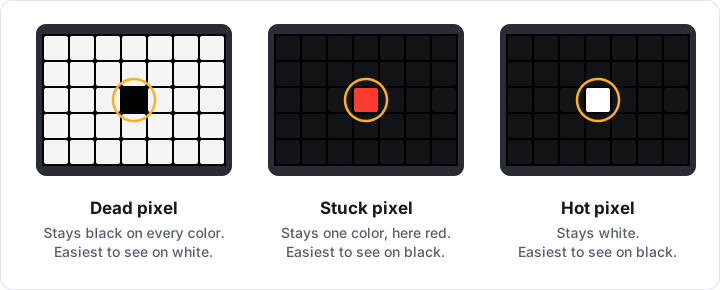
| Fault | What you see | Easiest to see on | Can software help? |
|---|---|---|---|
| Dead pixel | A dot that stays black | White | No |
| Stuck pixel | A dot that stays red, green or blue, or yellow, cyan or magenta when two subpixels are stuck | Black, and colors that differ from the dot | Sometimes, with the Stuck Pixel Fixer |
| Hot pixel | A dot that stays bright white, because all three subpixels are stuck on | Black | Sometimes, as for a stuck pixel |
There is no single number. It depends on the manufacturer's pixel policy, and policies differ between brands and product lines. Many count bright pixels (stuck or hot) and dark pixels (dead) separately, so a single faulty pixel may not qualify for a replacement under warranty. Dell's Display Pixel Guidelines are one example of such a policy, and the dead pixel policy guide compares the limits of Dell, Lenovo, ASUS, Gigabyte, BenQ, AOC, ViewSonic and LG.
A store's return window is separate from the warranty and is often simpler, so test a new screen on the first day. Note where each faulty pixel is and which colors show it, and see how to document a pixel fault.
Source: Dell: Dell Display Pixel Guidelines. Checked October 6, 2026.
A dead pixel that stays black cannot be fixed by any software; only a panel replacement or a repair helps. A stuck or hot pixel sometimes recovers, with no guarantee:
The page paints the test area with one solid color at a time: White (#ffffff), Black (#000000), Red (#ff0000), Green (#00ff00) and Blue (#0000ff), in that order. Full red, green or blue lights mainly one kind of subpixel, so a faulty subpixel stands out on its own color.
Start test uses the browser's Fullscreen API, or covers the browser window where it is missing. Auto cycle moves to the next color every 3 seconds. After 2.5 seconds without input, the controls and pointer hide so nothing covers a pixel. A browser cannot read the state of a panel, so nothing is measured: you find faults by looking.
Usually not. A dead or stuck pixel is normally a single fault that stays the same size, though new ones can appear later. A dark patch that grows, often on a phone after a drop or pressure on the screen, is damage to the panel itself and needs a repair.
Dust moves or comes off when you wipe the screen; a faulty pixel stays in the same place on every color that shows it. A pixel fault is also a sharp point, no bigger than a pixel. A soft gray smudge that does not wipe off is often dust inside the panel. The Screen Cleaner's black field shows surface dust.
It is usually a fault in the panel's row or column drivers or its connections, not a set of dead pixels. On an external monitor, try another cable and port first. If the line also crosses the monitor's own on-screen menu, the monitor is at fault and no software can fix it.