Backlight Bleed Test
Show full-screen black and dark grays to spot backlight bleed and IPS glow on an LCD.
Check an LCD with local dimming, such as a mini-LED monitor or TV, for blooming: halos of light around bright objects on a black screen. In a dark room, press Start test, then drag the shape or watch the moving patterns.
Drag the square around and watch the black beside it. A glow that spreads past its edges and follows it is blooming.
Runs entirely in your browser. Test results, audio and video never leave your device.
Blooming is a halo of light around bright objects on a dark background, seen on LCDs with local dimming, including mini-LED screens. Each backlight zone is far larger than a pixel, and the LCD cannot fully block a lit zone's light, so black pixels near a bright object glow. Edge-lit dimming blooms too, often in bands. OLED has no backlight zones, so it does not show this halo.
Blooming moves with bright objects. Light that stays at the edges of an all-black screen is backlight bleed, which the Backlight Bleed Test checks, and blotches on a flat gray screen are a uniformity problem for the Screen Uniformity Test.
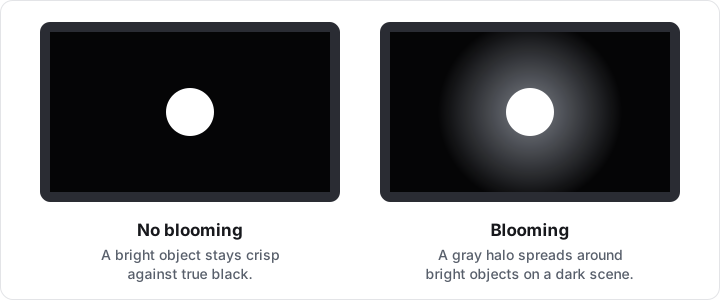
| Effect | What you see | When a bright object moves | Found on |
|---|---|---|---|
| Blooming | A glow or halo around bright objects on black | Moves with the object | LCDs with local dimming |
| Backlight bleed | Bright patches at the edges or corners of a black screen | Stays in place | Any LCD |
| Uneven gray (clouding) | Lighter and darker blotches on a flat gray screen | Stays in place | Mostly LCDs |
Blooming comes from local dimming, so the screen's own settings control it, where it has them. Compare them on the same pattern, such as the Subtitle bar:
Some blooming comes with local dimming: even thousands of zones are far fewer than the millions of pixels. More, smaller zones and better dimming processing usually mean smaller halos, but none remove them. Judge it the way you watch: at your usual brightness and distance, on subtitles, dark game menus or a starry scene.
For the 12.9-inch iPad Pro (5th and 6th generation), Apple's support page says bright LEDs can cause a slight blooming effect, and calls a slight blur or color change while scrolling against black backgrounds normal behavior. Sellers and makers decide what counts as a defect, so if halos bother you in everyday content at every dimming level, raise it with the seller while the return window is open.
Each pattern is drawn on a canvas sized to the device pixels of the test area, on pure black (#000000). Brightness sets the gray of everything drawn, from 10% (#1a1a1a) to 100% (#ffffff): signal levels, not light output. Size has 5 steps; the Square runs from 4% to 40% of the screen's shorter side.
The Moving dot travels about 12% of the shorter side a second and the 140 stars drift 1.2% of the width a second; nothing flashes and nothing is measured. Where the browser has the Screen Wake Lock API, the page asks it to keep the screen on during the test.
OLED has no backlight zones, so it does not show this halo. Each pixel makes its own light and can switch off completely for black. OLED has other trade-offs, such as burn-in, which the Screen Burn-In Test checks.
A phone camera raises its exposure in a dark room, so a faint halo turns into a bright one, and its processing can add glow of its own. Judge with your eyes at your normal viewing distance. If you need a photo for a claim, lower the exposure until the photo matches what you see.
The page cannot tell you. Some makers list the zone count in the specifications. Moving the Dot slowly shows roughly how far each halo reaches, but dimming processing can blend neighboring zones, so they cannot be counted reliably by eye.
Yes, if it has an LCD with local dimming. Among iPads, only the 12.9-inch iPad Pro (5th and 6th generation) has one; iPad Pro models released since 2024 use OLED. On a TV, open this page in its browser or connect a computer by HDMI, then press Start test; on a touch screen, drag with one finger to move the shape.